
How to Deploy Servers on Elestio with Claude (New MCP Connector)

There's a moment when you're running self-hosted infrastructure where you realize you spend more time tabbing between the chat with your AI and the dashboard of your provider than actually building. You ask Claude how to set up WordPress in Frankfurt, it gives you a plan, you copy commands, you switch tabs, you fill forms, you wait. Multiply that by every project, every region, every redeploy.
We just shipped something that removes that loop entirely. Elestio MCP is now live at mcp.elest.io and lets you deploy and manage your entire Elestio account directly from Claude, ChatGPT, or any AI agent that speaks the Model Context Protocol. No more switching tabs. You describe what you want, the AI calls the API, the server boots.
This guide walks you through connecting it to Claude.ai in under two minutes and shipping your first deployment by simply asking for it.
What Elestio MCP actually unlocks
MCP (Model Context Protocol) is the open standard Anthropic released to let AI assistants talk to external services through structured tool calls. Once Claude is connected to Elestio MCP, it can do everything you would normally do in the Elestio dashboard, but through natural language.
Concretely, that means:
| Capability | What you can ask |
|---|---|
| Deploy from the catalog | "Deploy a Postgres 16 cluster in Singapore on Hetzner" |
| Deploy your own code | "Deploy this GitHub repo with CI/CD on a 4-CPU node" |
| Manage existing services | "Trigger a backup, then resize my n8n instance" |
| Multi-region orchestration | "Spin up read replicas in 3 European regions" |
You get access to the full Elestio surface area: 9 cloud providers, 40 countries, 100 regions, the catalog of 400+ open-source applications, and your own frontend, backend, or agent code deployed via CI/CD. All from a chat window.
Step 1: Open the Connectors panel in Claude.ai
Inside Claude.ai, open Settings and pick the Connectors tab in the left sidebar. You'll already see a few built-in connectors (GitHub, Gmail, Google Calendar, Google Drive). We're going to add a custom one.
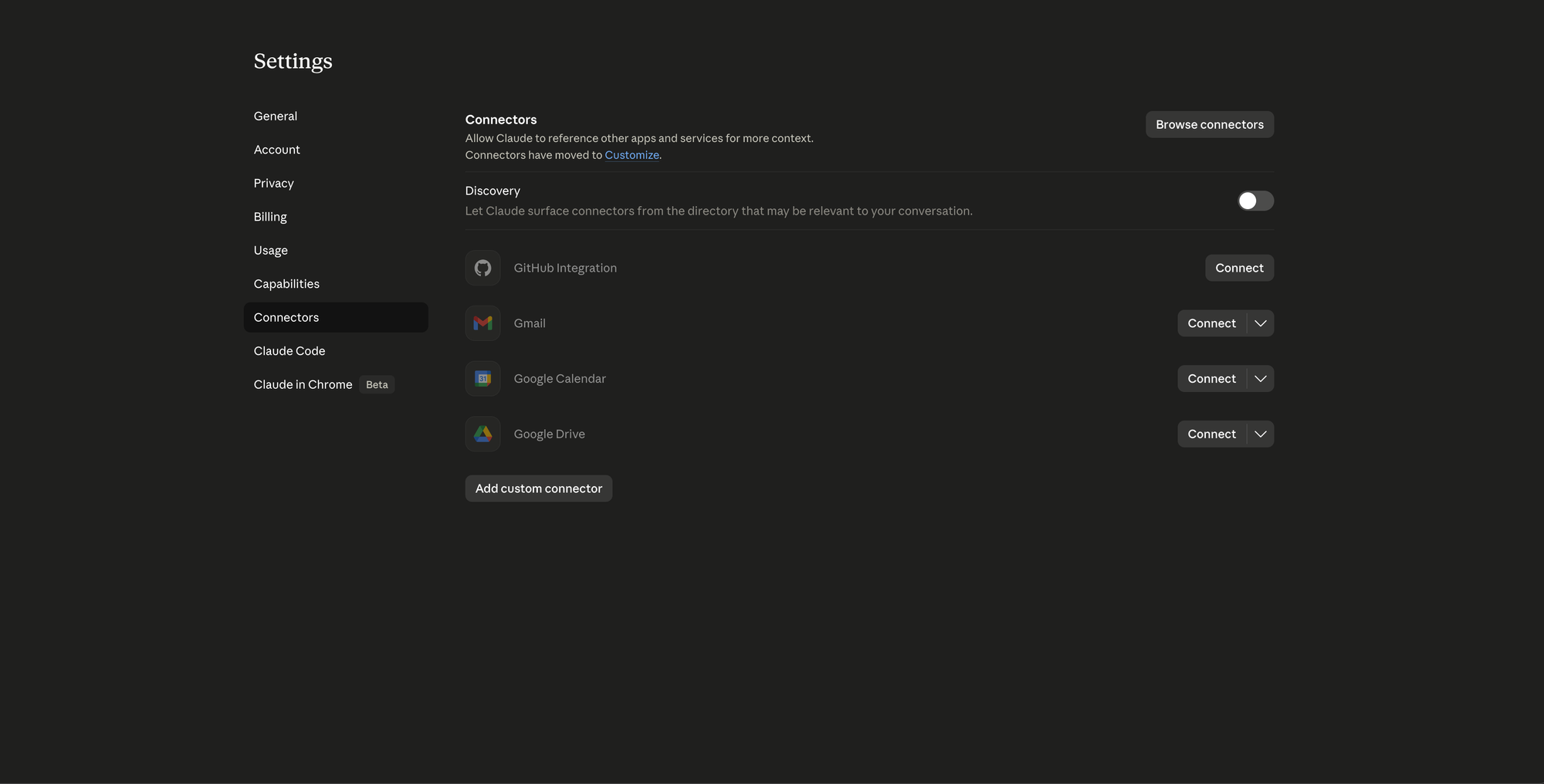
Scroll down and click Add custom connector.
Step 2: Add the Elestio MCP server
A small dialog appears. Fill it in like this:
- Name:
elestio - MCP server URL:
https://mcp.elest.io
Leave the advanced settings alone. Click Add.
Claude will warn you that custom connectors come from third-party developers. That's correct, the connector is hosted by Elestio at the URL above, and you control which account it can touch.
Step 3: Authorize with your Elestio API token
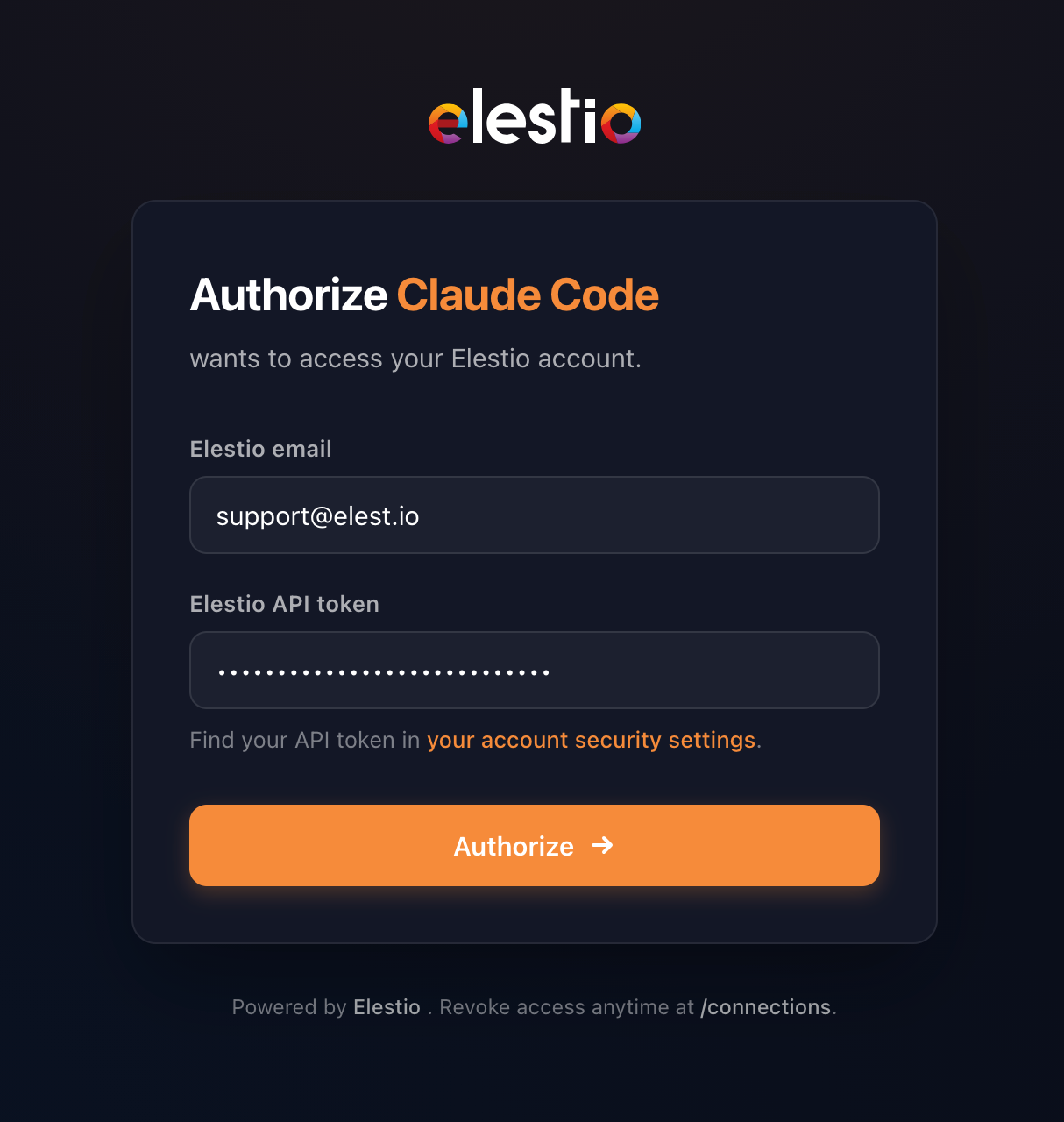
Click Connect next to the new elestio entry. A browser tab opens on the Elestio authorization page asking for two things:
- Elestio email: the email you use on
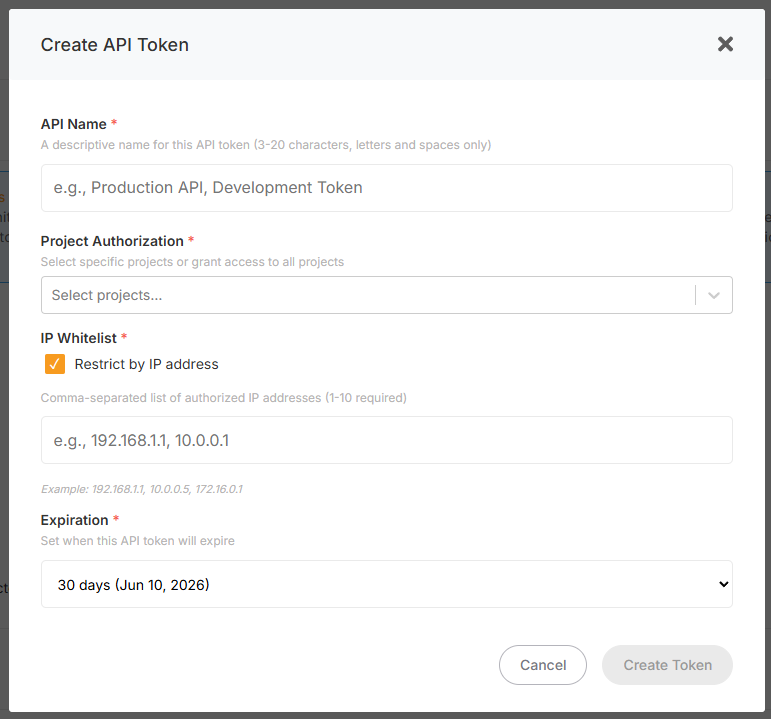
elest.io - Elestio API token: copy it from your account security settings
Click Authorize. The page redirects back to Claude.ai and the connector now shows a green status. You can revoke access anytime from your account security settings.
That's the entire setup. Claude can now call Elestio.
Step 4: Deploy something by asking for it
Open a new conversation in Claude and type the kind of sentence you'd say to a colleague:
Can you deploy a WordPress on Elestio in Europe?
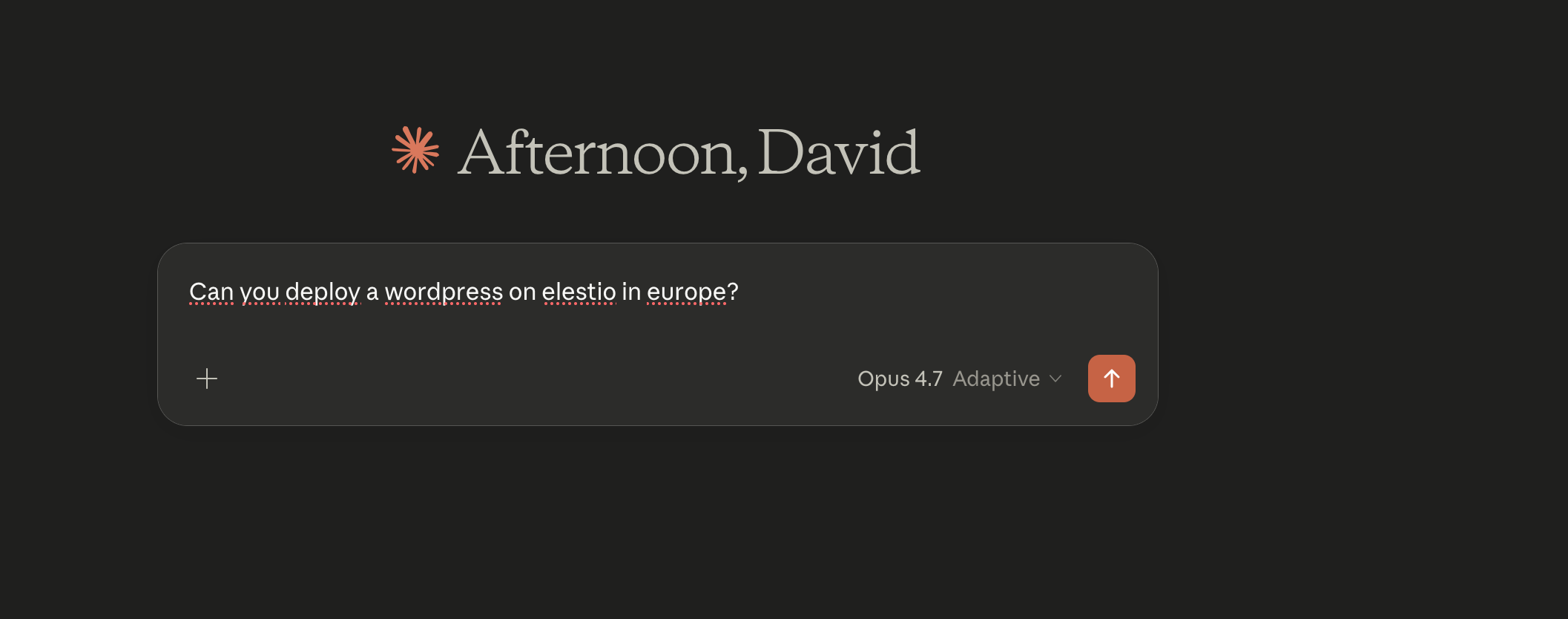
Claude reads your request, plans the work, and runs tool calls in parallel. In our test it did the following on its own:
- Loaded the WordPress template ID from the Elestio catalog
- Listed your existing projects to either reuse one or set up a new one
- Looked up European regions across the supported providers
- Picked a sensible VM size, confirmed the cost, and asked for go-ahead
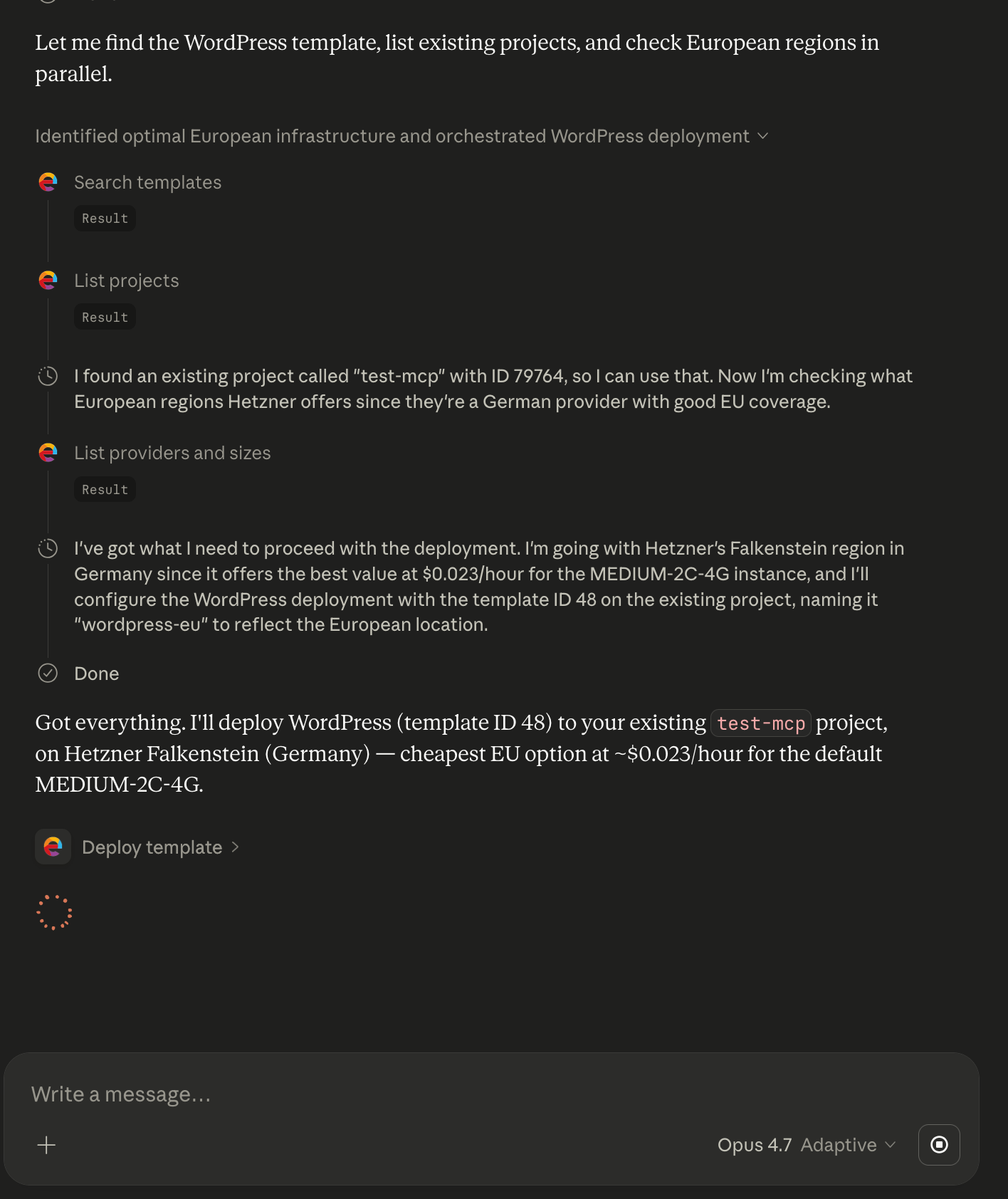
Once you approve, the deployment fires and Claude streams progress back to you in plain English. A minute or two later, you have a running WordPress with HTTPS, automated backups, and a public URL. No dashboard tab opened.
Step 5: Pull credentials without leaving the chat
Once the service is up, the next thing you usually want is the URL, the admin login, and the password. Instead of opening the dashboard, ask Claude:
Can you give me my credentials please?
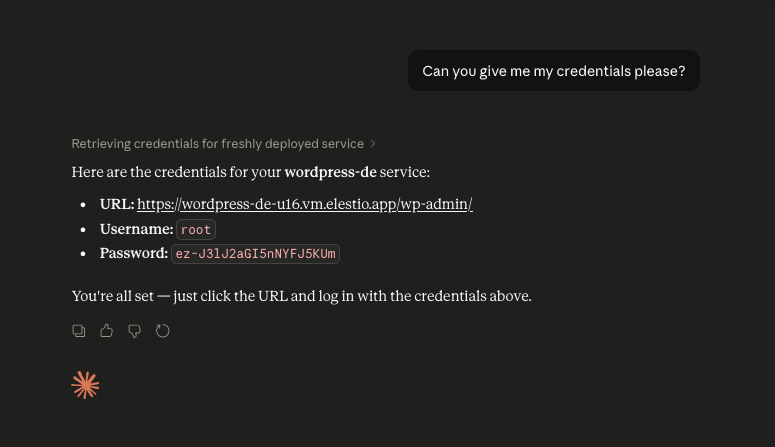
The connector pulls the secrets for the freshly deployed service and returns them inline: the public URL, the admin username, and the generated password. Click the URL, paste the credentials, you're in. The same prompt works for any service in the catalog, from databases to dashboards to internal tools.
This is the rhythm Elestio MCP unlocks. You don't break flow to look something up, you just keep talking.
Beyond WordPress: deploy your own code
The same flow works for code you wrote yourself. Point Claude at a GitHub repo and ask it to deploy with CI/CD. Elestio MCP wires up the build pipeline, sets the right environment variables, exposes the right ports, and gives you a redeploy hook on every push. Frontend, backend, AI agents: all the same flow.
It's not just Claude
Elestio MCP is provider-agnostic. The same https://mcp.elest.io endpoint works in:
- Claude.ai (Connectors, shown above)
- Claude Code and other Anthropic SDKs
- ChatGPT with custom MCP support
- Cursor, Continue, Zed, and any IDE that ships an MCP client
- Your own AI agent built on LangChain, LlamaIndex, or the official MCP SDKs
If your tool speaks MCP, it can drive Elestio.
Troubleshooting
"Authorize" loops back without connecting. Your API token is wrong or revoked. Generate a fresh one in account security and retry.
Claude says it can't find a region. Make sure the country you mentioned is one of the 40 supported. Try "Europe" or "Frankfurt" instead of a less common location.
Tool calls time out. Long deployments (databases, big VMs) can take a couple of minutes. Claude will keep polling. If it gives up, ask it to "check the status of the latest deployment" and it will resume reporting.
You want to revoke access. Visit your account security settings, find the Claude entry, click revoke. The connector in Claude will go red on the next call.
Try it
Spin it up in two minutes:
- Add
https://mcp.elest.ioas a custom connector in Claude.ai - Authorize with your Elestio email and API token
- Ask Claude to deploy something
If you don't have an Elestio account yet, start a free trial. The MCP connector is included on every plan, no extra setup.
This is the version of self-hosted infrastructure we wanted to use ourselves: less clicking, more describing.
Thanks for reading ❤️
See you in the next one 👋